
Rent and payments · Tenant mobile app and owner payment records
Collect rent through M-Pesa and reconcile it
Follow an invoice-linked M-Pesa rent payment from request through provider confirmation, reconciliation and receipt.
The PDF includes these steps and their available product screenshots.
Before you begin
- An eligible KES rent invoice.
- An active supported online payment setup and a reachable Kenyan M-Pesa payer number.
Step-by-step walkthrough
- 1
Open the eligible rent invoice
Open the tenant's current outstanding invoice. The M-Pesa payment action is available only when the configured collection route is ready and the invoice is eligible.
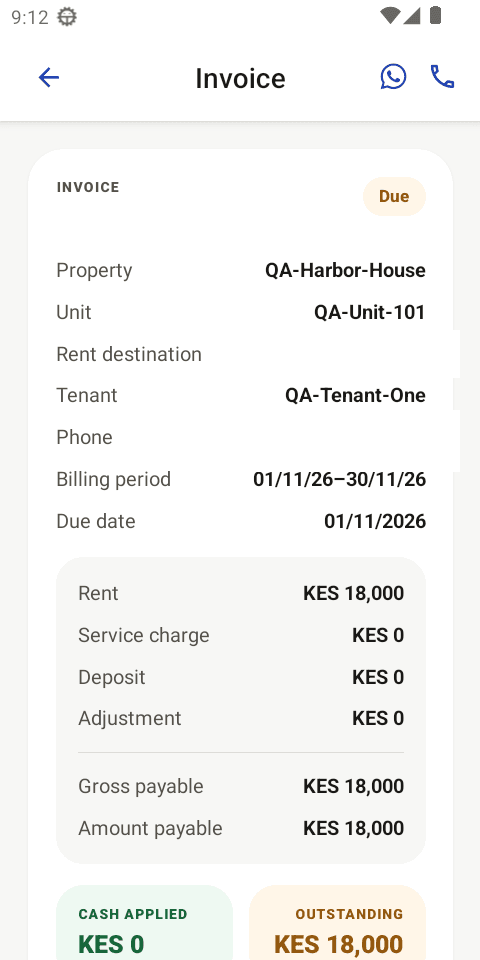
Current local QA emulator capture: review the complete invoice detail and confirm the outstanding rent before starting payment. - 2
Initiate the invoice-linked request
Choose Pay with M-Pesa, confirm the amount, enter the synthetic QA payer number 0722000000, and submit the request. The payment-flow capture uses KES 1 because the matching receipt is available in the repository; no real request is sent in this guide. The customer approves the prompt through their usual M-Pesa PIN interaction. Never treat a prompt alone as proof of payment.
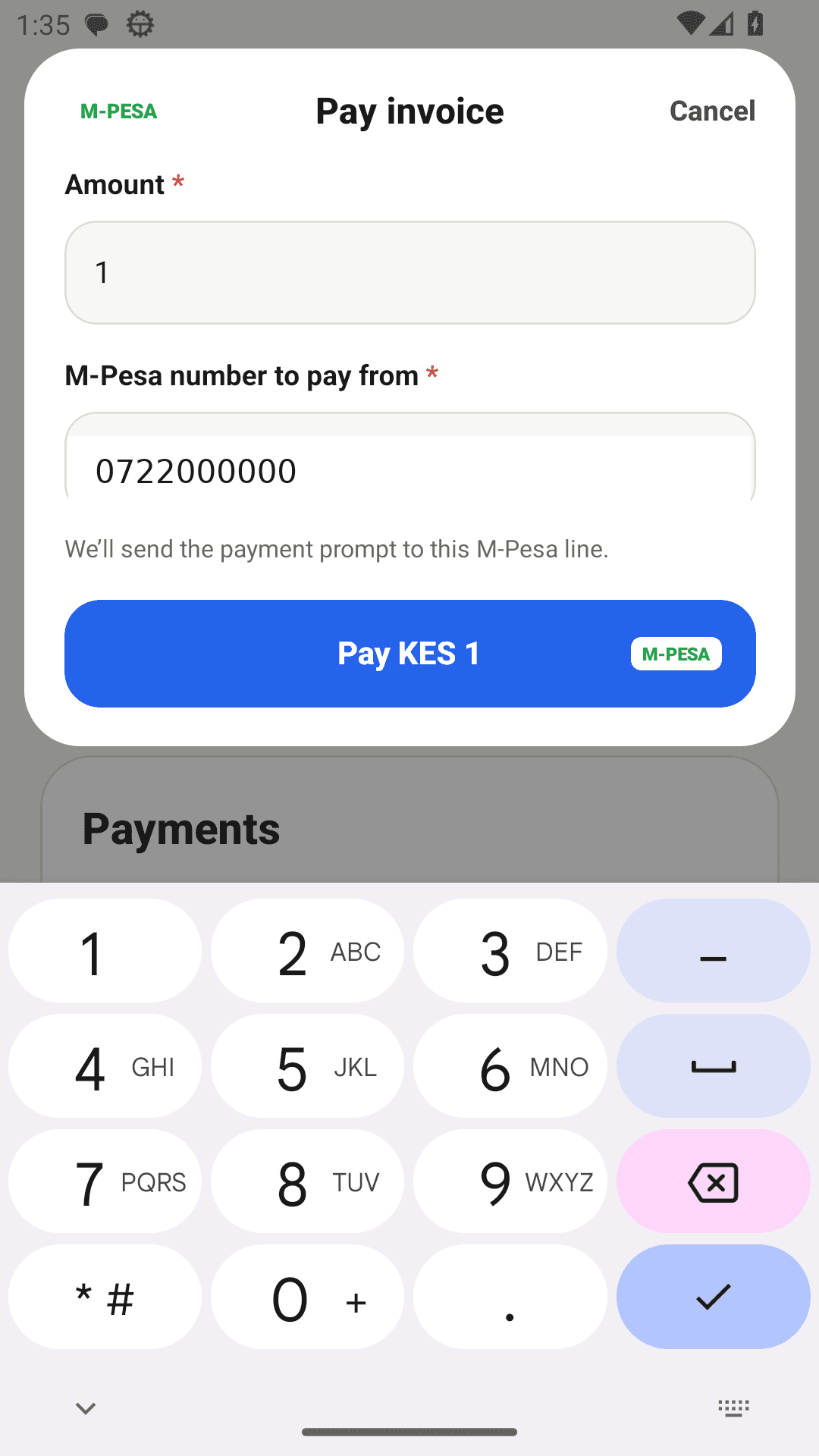
Reviewed product capture: the checkout is prepared for KES 1 using the synthetic QA payer number 0722000000. - 3
Allow the provider confirmation to complete
A pending STK prompt or processing screen is not a settled invoice. Wait for the payment provider's validated confirmation. An unsuccessful or interrupted payment remains unresolved until a legitimate success is recorded.
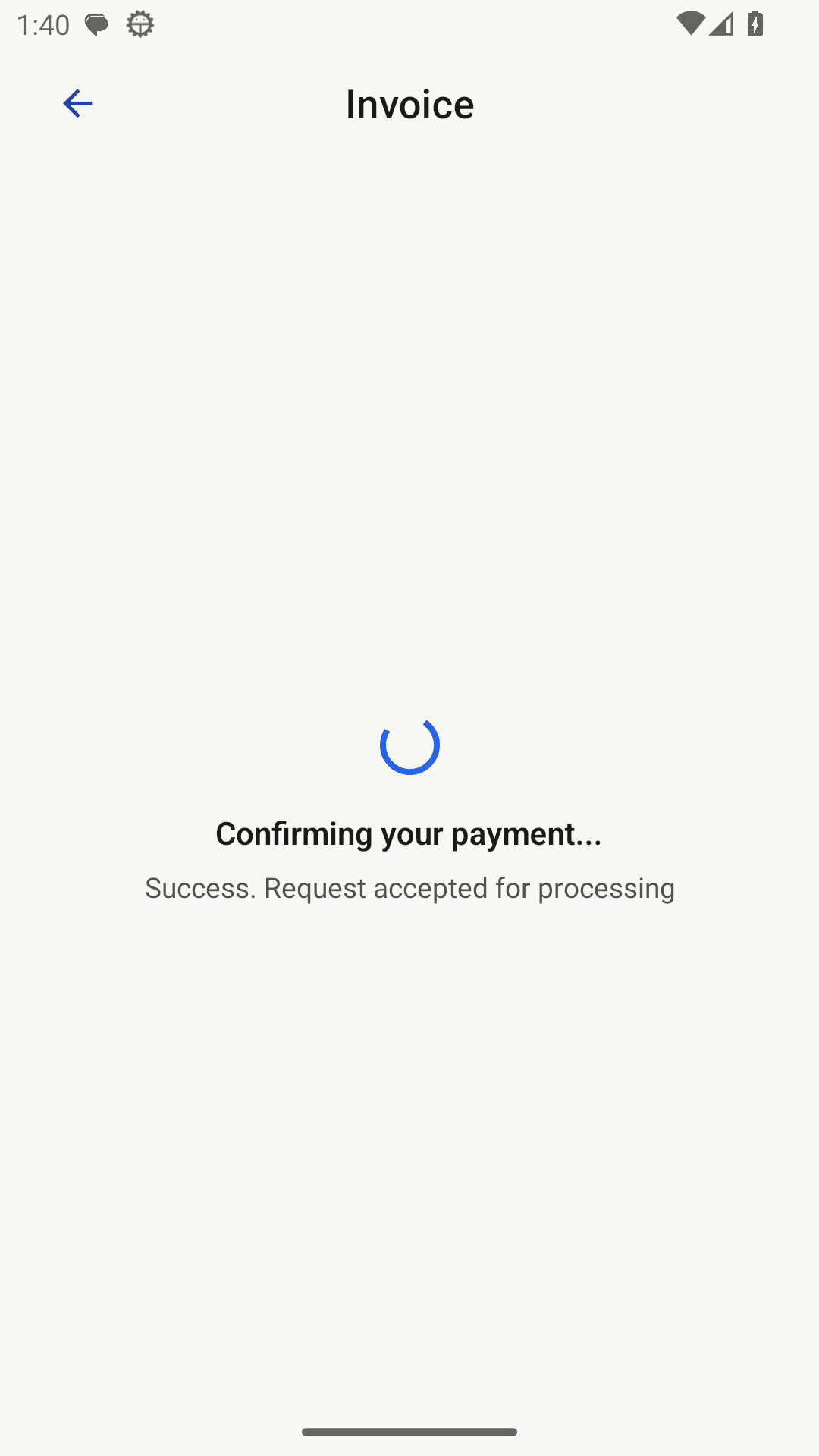
Reviewed product capture: the STK request is accepted for processing; this state is not yet settlement. - 4
Verify reconciliation and receipt
After a valid successful callback, RentPayor applies the confirmed online payment to the correct invoice and updates the balance. Reopen the invoice and receipt record to confirm the result.
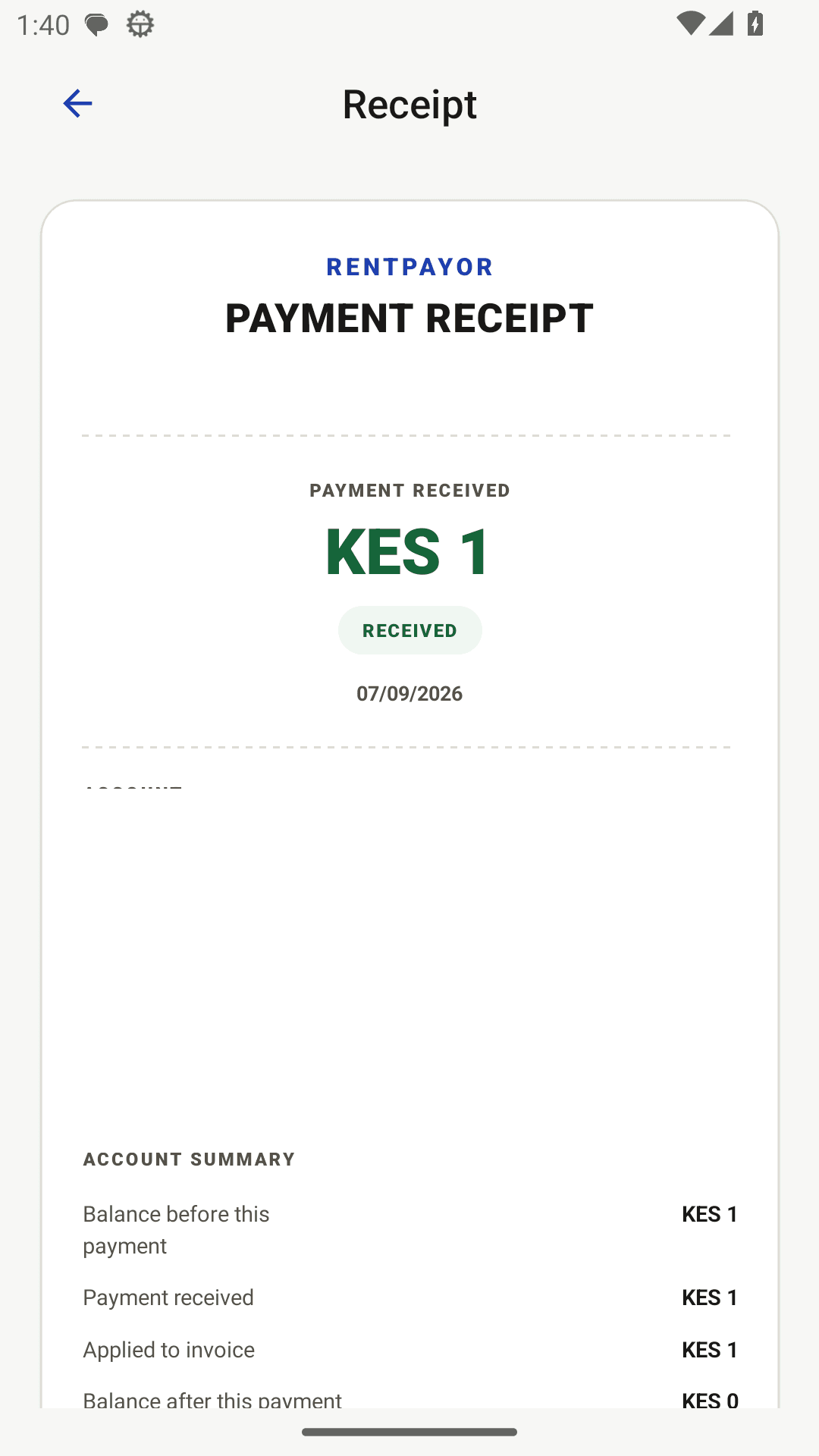
Reviewed product capture: the KES 1 receipt shows the confirmed amount and invoice application summary.
Expected result
- A confirmed online payment is matched with the invoice that initiated it.
- The recorded payment and balance are visible.
- A receipt can be opened and shared.
Important details
- RentPayor does not hold landlord rent; eligible payments settle to the configured supported destination.
- Only confirmed, invoice-linked online transactions reconcile automatically. An unrelated transfer must be recorded manually.