
Management and billing · Web dashboard and owner mobile app
Review rental reports and accounting
Navigate RentPayor rent summaries, payment history, expenses and reporting or accounting views without mixing landlord rent with platform fees.
The PDF includes these steps and their available product screenshots.
Before you begin
- An owner or authorized role with access to reporting.
- Recorded properties, invoices, payments or expenses to review.
Step-by-step walkthrough
- 1
Start with the portfolio overview
Open the dashboard to compare rent billed, amounts recorded as paid, outstanding rent and the property or unit context behind the totals.
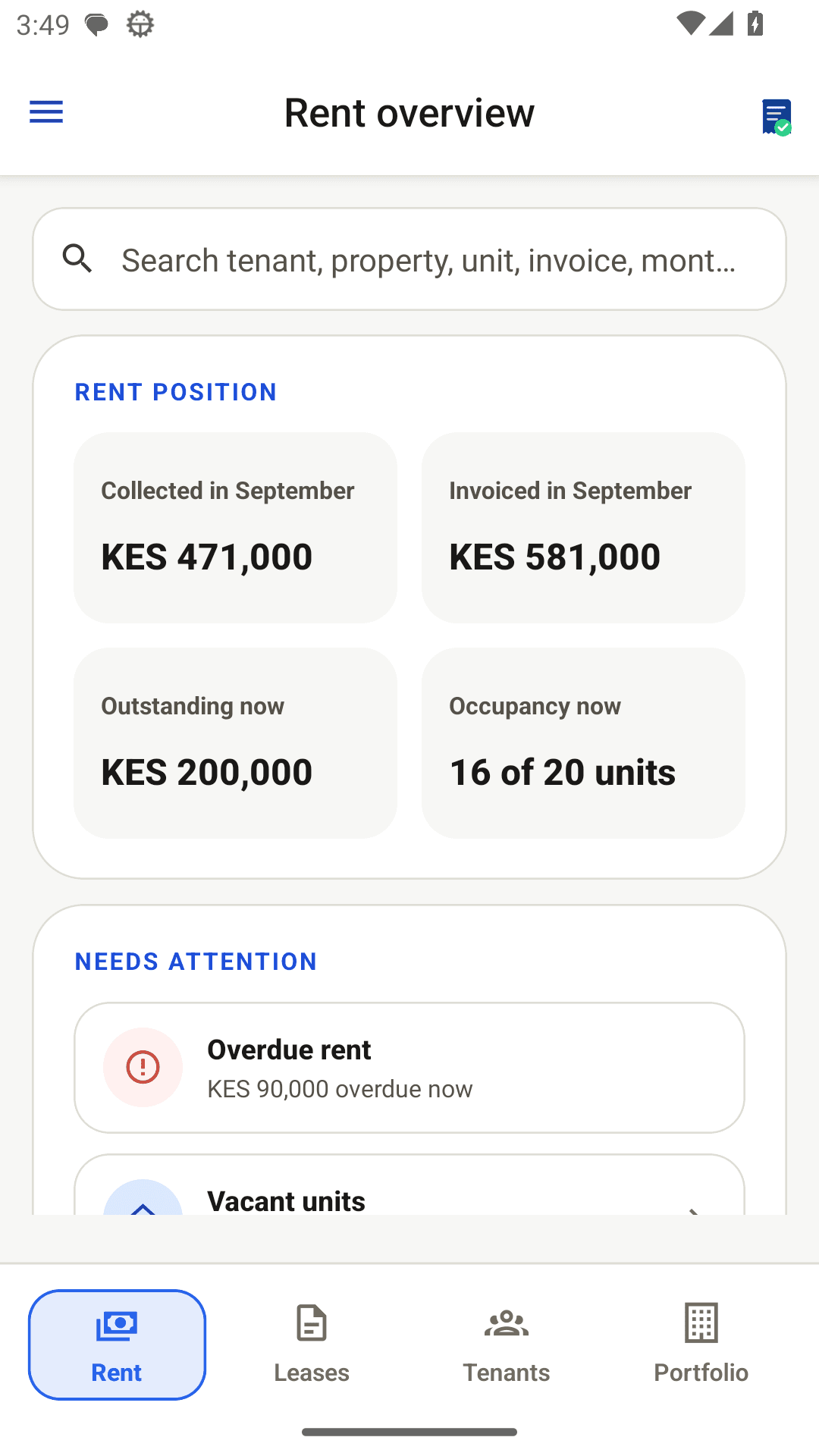
Existing product capture: owner overview. - 2
Review rent and payment history
Open the invoices or payments area to check individual settlement records before relying on a summary. Check the selected reporting period and currency.
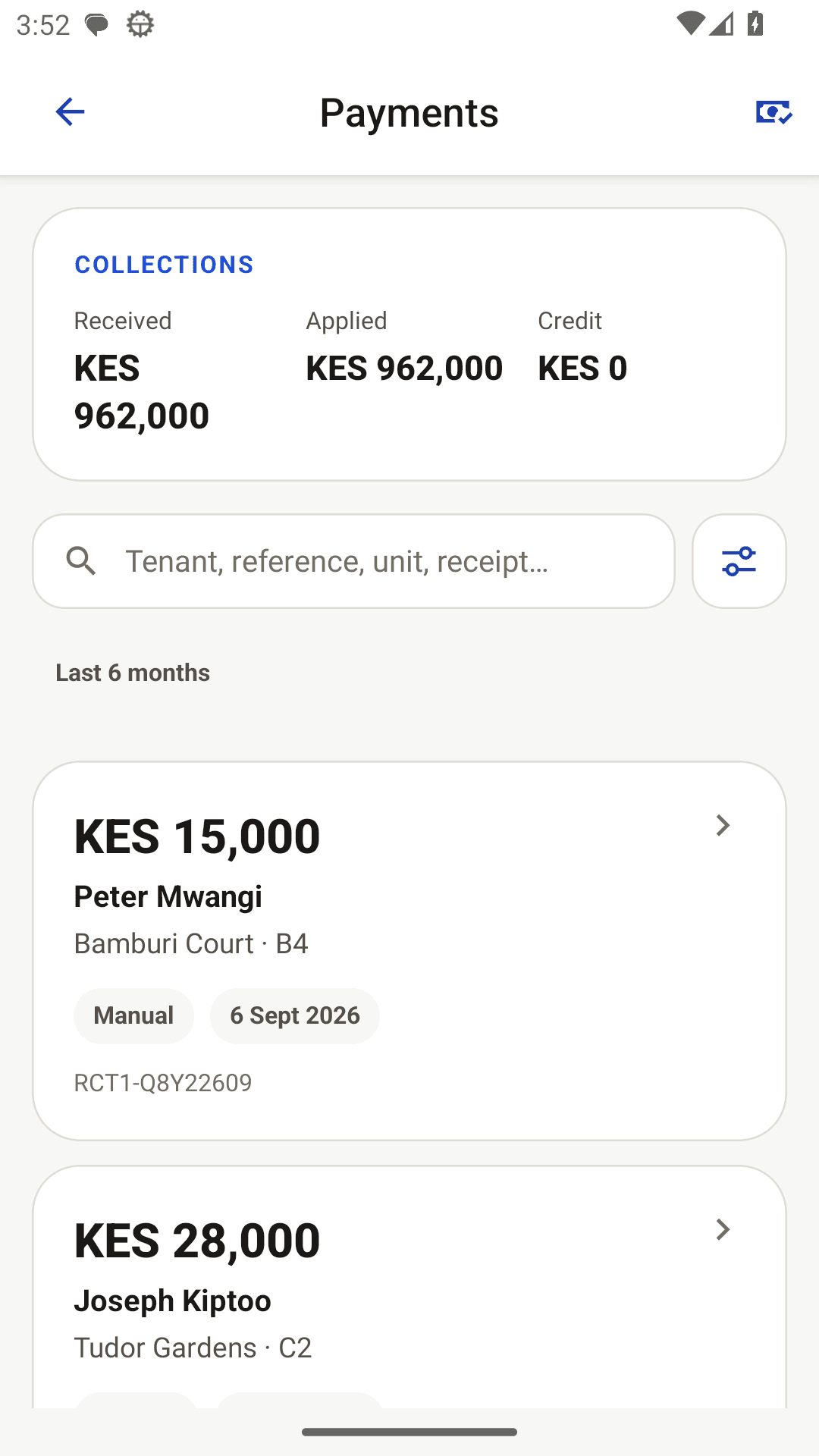
Fictional QA capture: inspect the payments ledger behind the portfolio summary. - 3
Review expenses
Open Expenses to see costs associated with the portfolio. Check the month, unit scope and category filters, then compare the expense total with rent records for the same period without treating an invoice as received cash.
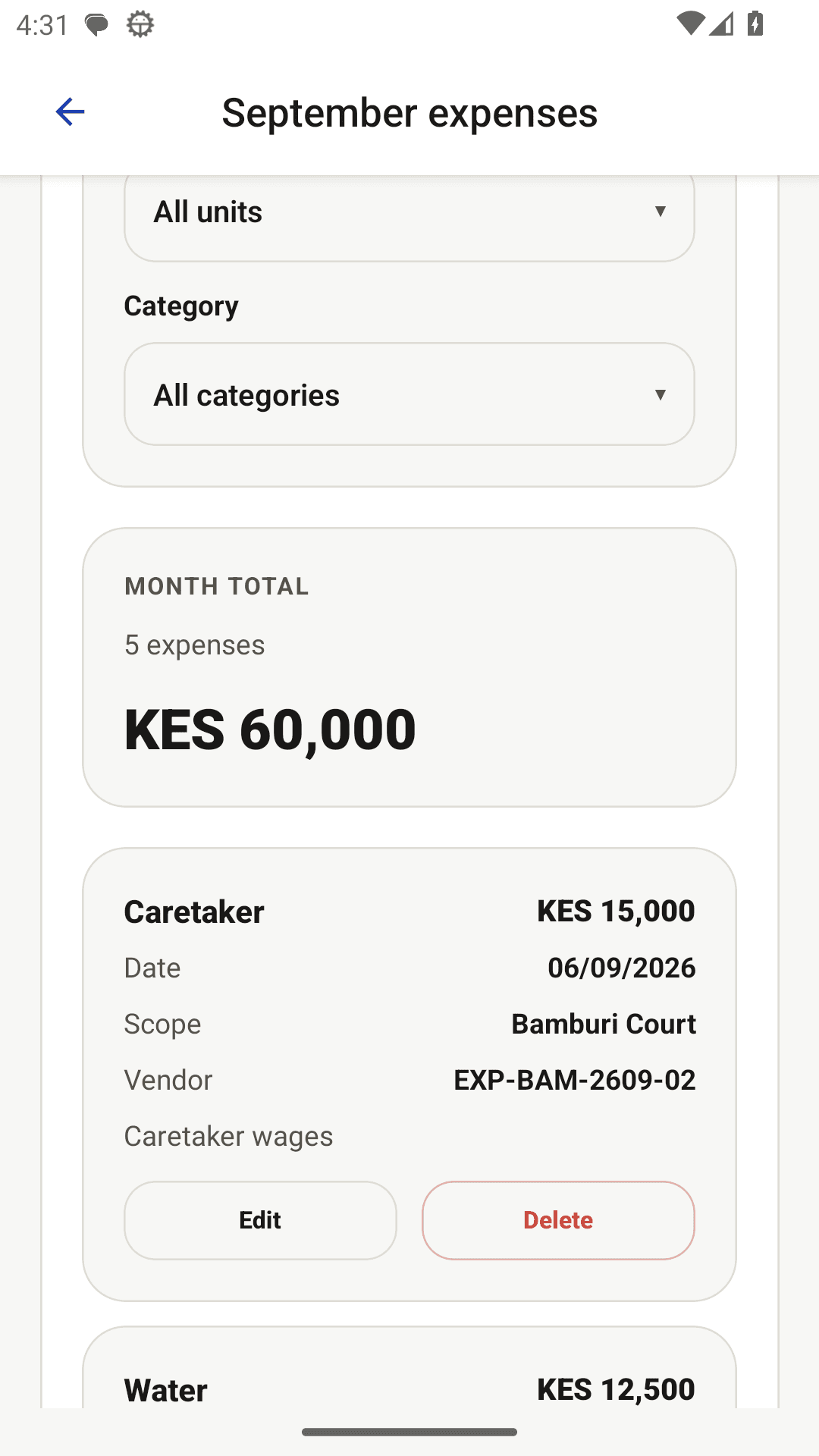
Current product capture: review the selected month's expense total and individual expense records. - 4
Review owner accounting
Open Accounting and choose Owner accounting to review manager-held funds, amounts owed to or by the manager and the net owner position. Treat these as RentPayor-derived accounting positions, not verified bank balances.
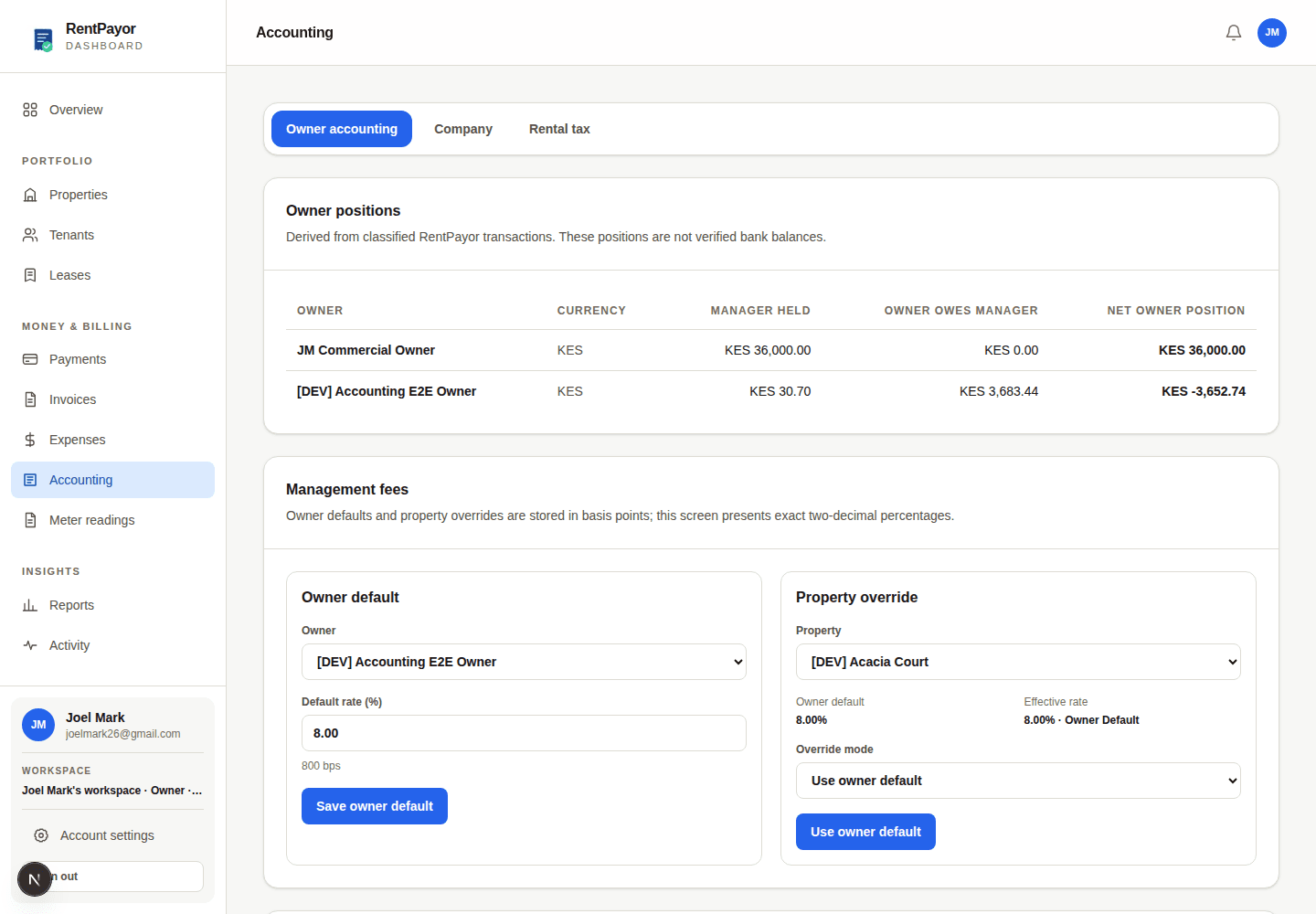
Current owner-dev capture: Owner accounting separates manager-held cash, obligations and net owner position. - 5
Check settlement availability
In Owner settlements, select the owner, property and currency, then review available-to-settle, managed owner cash, unreserved cash and reserved tenant funds. Available to settle is the payout ceiling, not the net owner position.
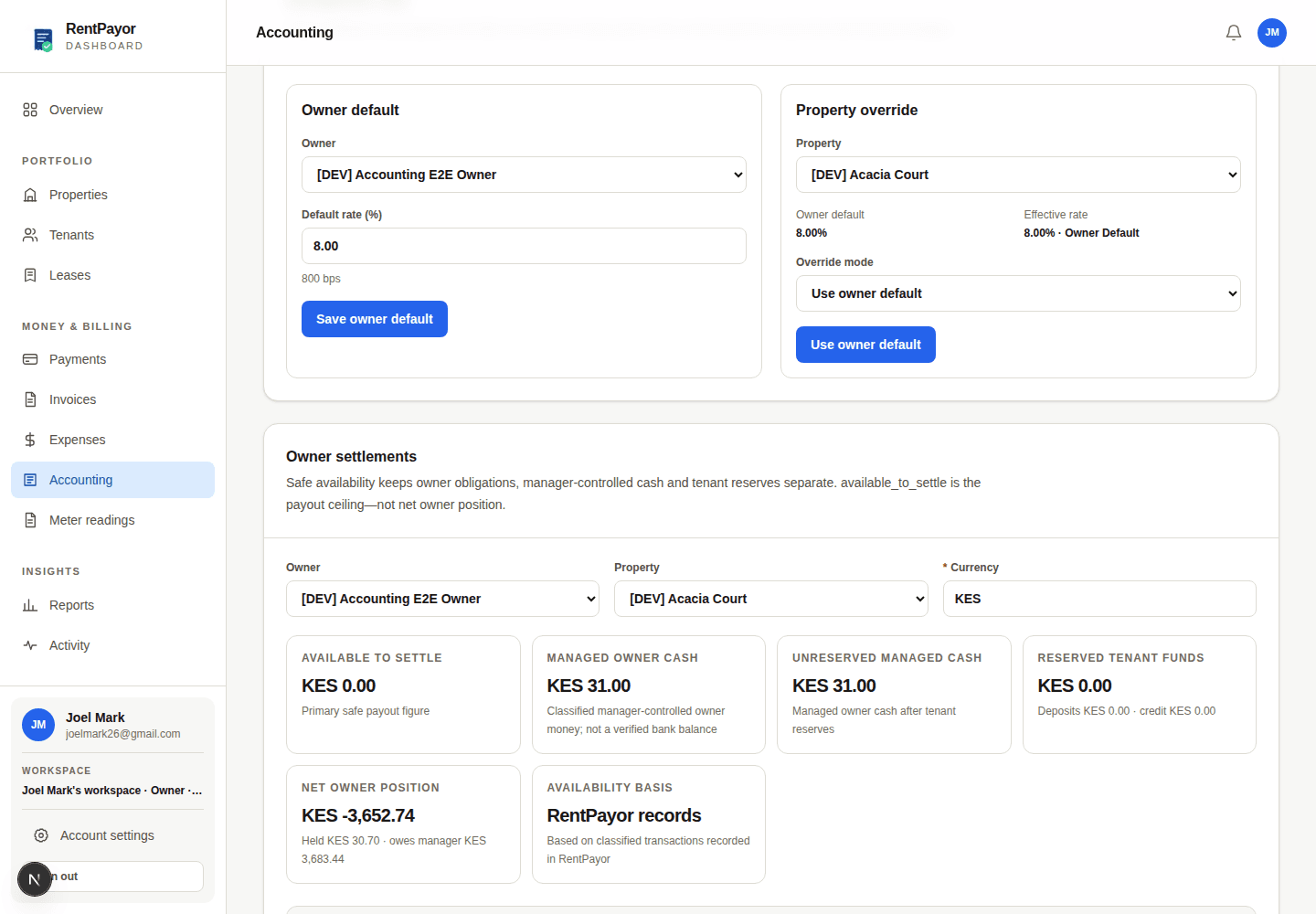
Current owner-dev capture: settlement availability keeps owner obligations and tenant reserves separate. - 6
Review the company result
Use the Company tab to review management-fee revenue, recorded company expenses and the net company result by currency. This is based on transactions recorded in RentPayor and is not a bank balance.
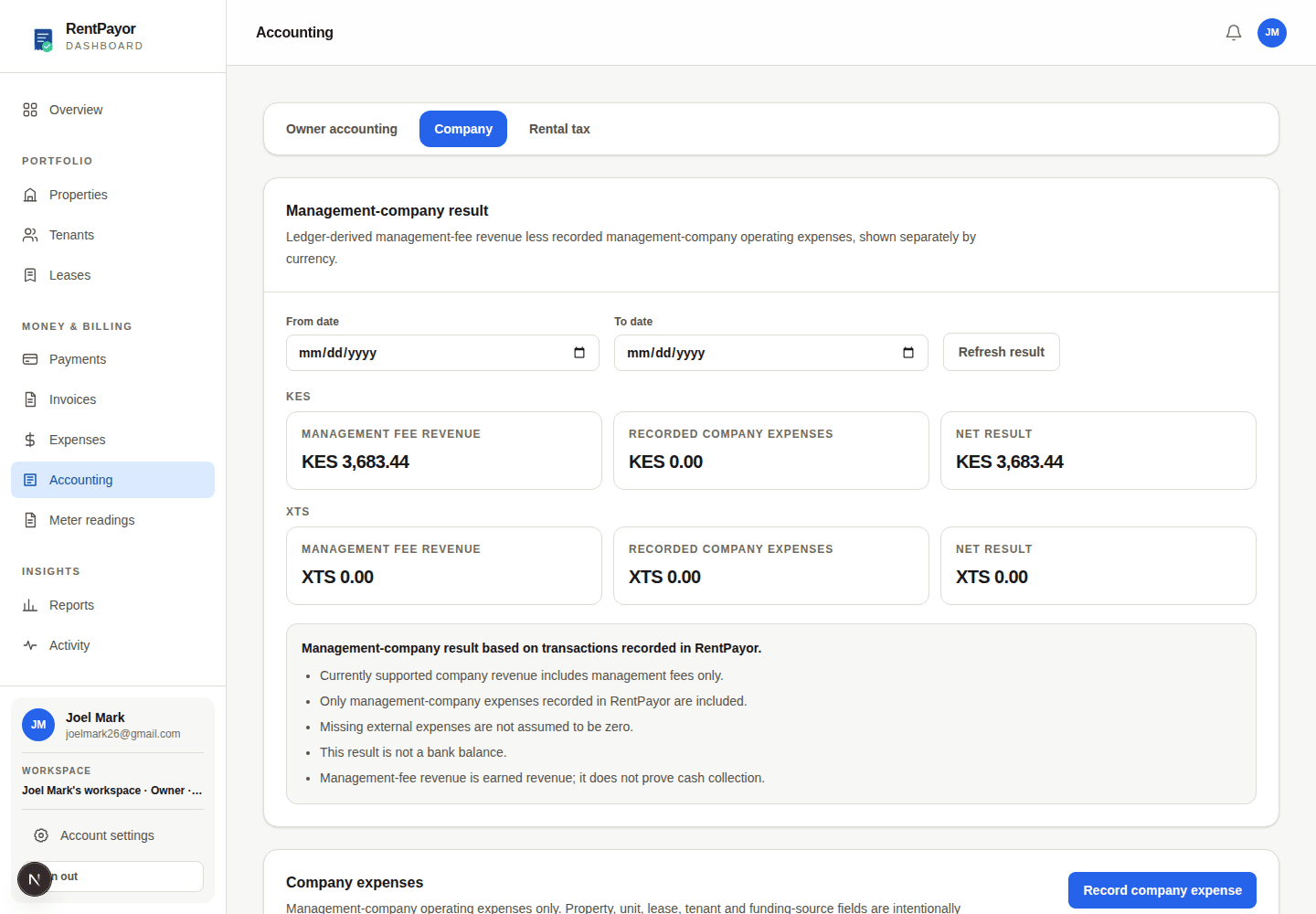
Current owner-dev capture: the Company view separates management-fee revenue, company expenses and net result. - 7
Review the web financial report
Open Reports in the owner dashboard, choose the staff, owner, scope, property and date filters, then apply them. Review rent billed, cash received, receivables, overdue rent, operating expenses and the reconciliation definitions before sharing a summary.
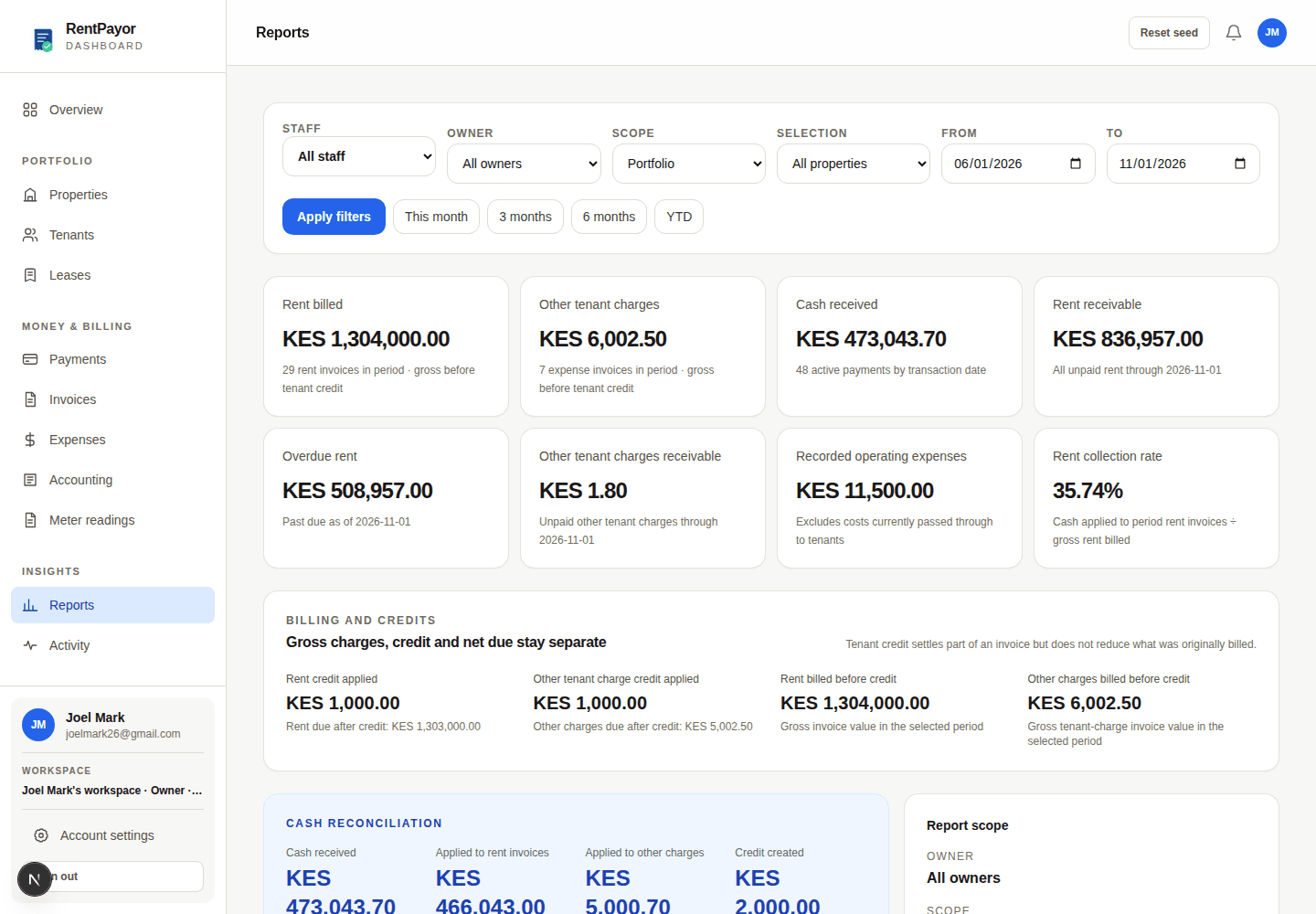
Current owner-dev capture: the web Reports workspace shows the selected period, filters and financial summary. - 8
Export or share the report
Scroll to Export and send after checking the report scope. Download the financial PDF or payment statement, or use Share PDF, WhatsApp message or Email message when those destinations are appropriate. The exported files use the filters shown in the report.
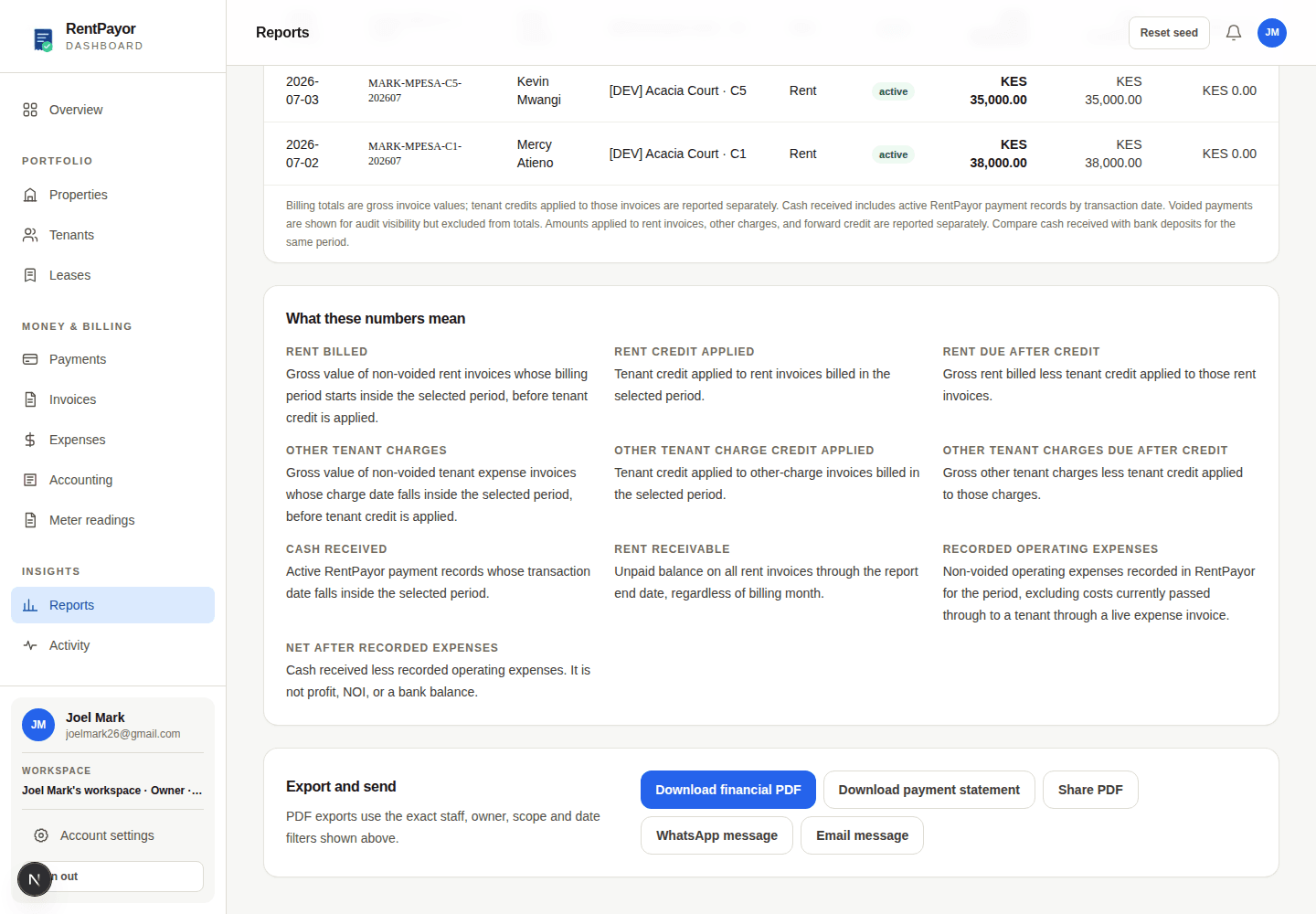
Current owner-dev capture: financial PDF, payment statement and sharing actions are visible at the bottom of Reports.
Expected result
- You can find the source records behind reported totals.
- Rent received, rent outstanding and expenses remain distinct.
- Owner positions, settlement availability and company result remain separate accounting views.
- The next reporting or export action is clear without assuming unsupported balances.
Important details
- The web Reports, export and accounting captures use the local owner-dev workspace and demonstrate the current controls. The published images are not production customer data.
- Rent collection totals are not RentPayor platform subscription revenue.